Vercel
Fork the repository, import it to Vercel, add the status page URL and deploy. This is the recommended method.
Vercel is the recommended deployment method. You do all steps in the browser and need no server.
Fork the repository
- Open the fork page of this repository.
- Click
Create fork.
Keep your fork public. A private fork can prevent a quick sync of upstream updates. All configuration is in environment variables, so your fork contains none of your configuration.
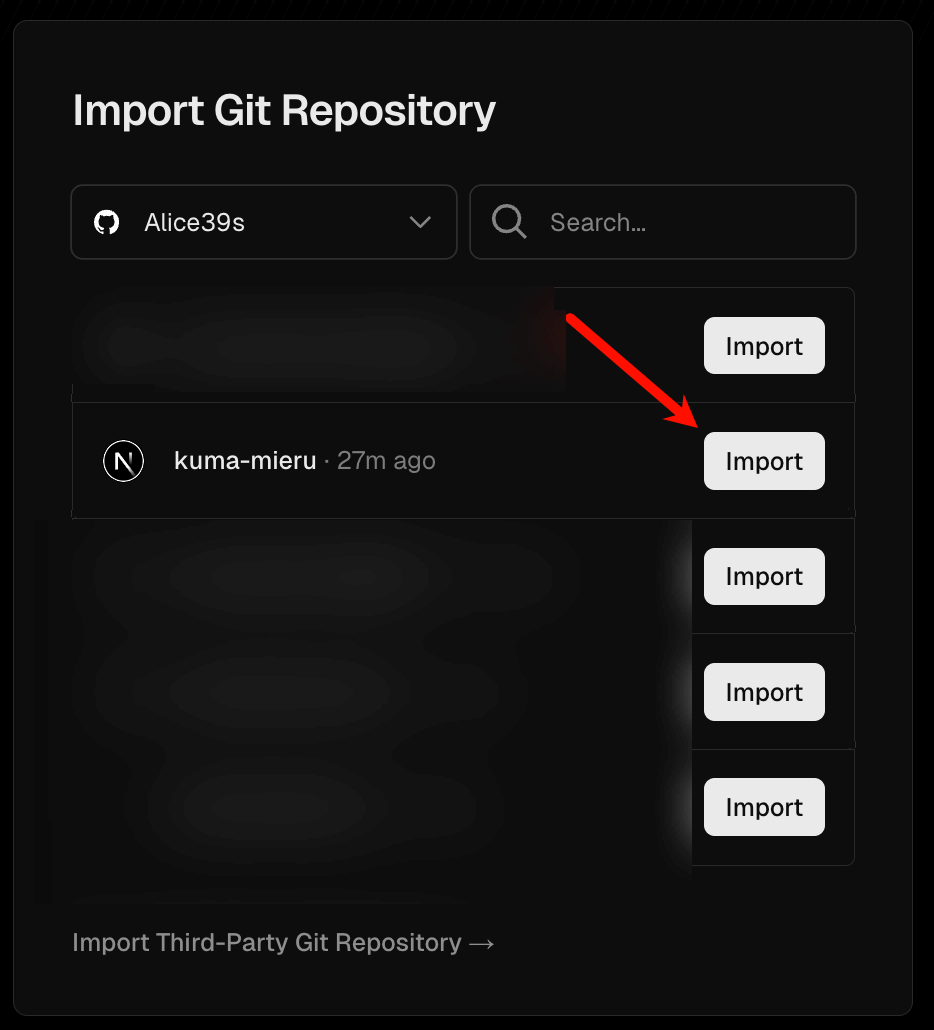
Set the root directory
On the project configuration page, set Root Directory to apps/web. The web application and its vercel.json are in this directory.
Add environment variables
Expand Environment Variables and add UPTIME_KUMA_URLS. Use the full URL of the Uptime Kuma status page as the value. Separate multiple status pages with |.
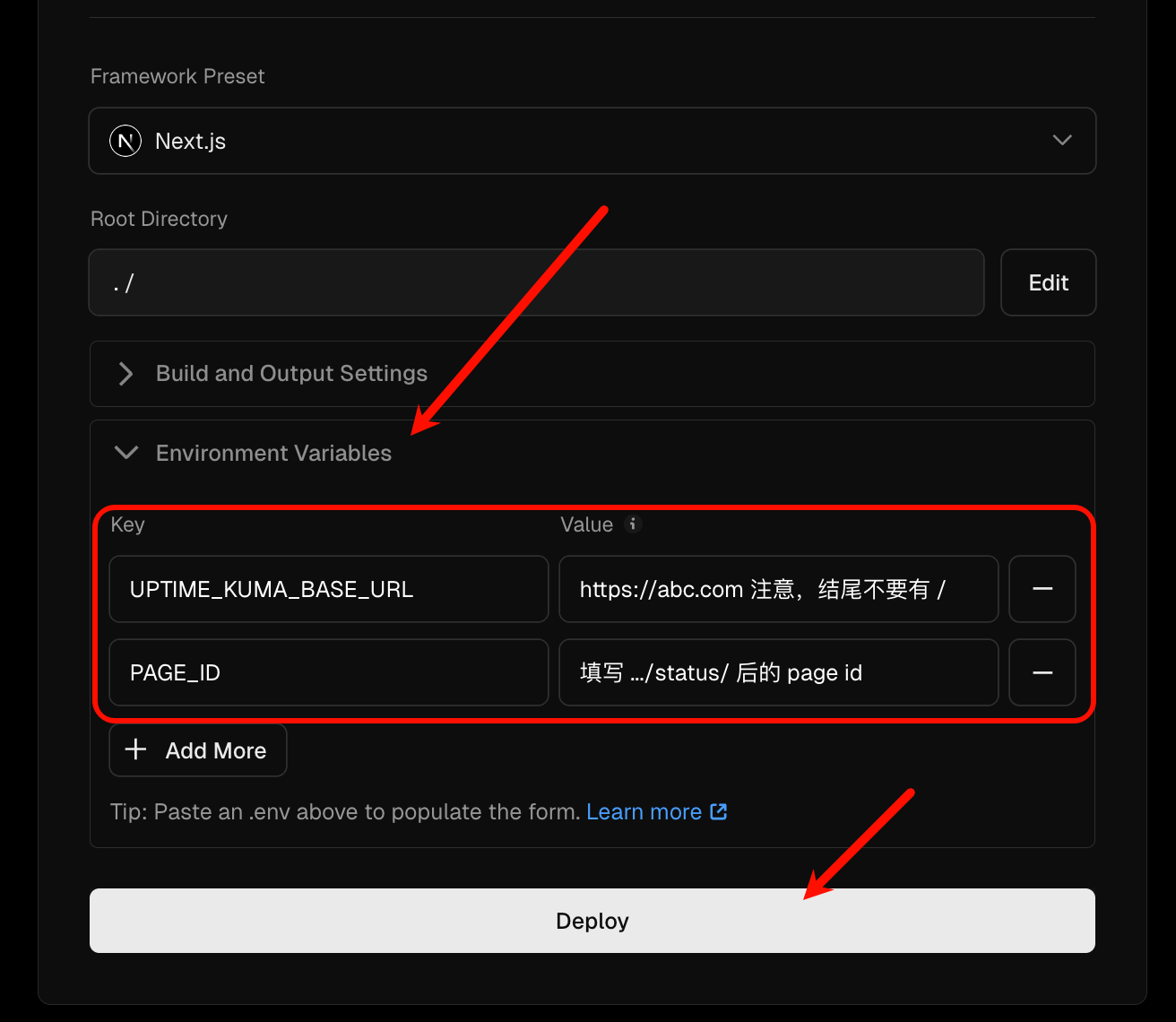
You must set UPTIME_KUMA_URLS (recommended) or the legacy pair UPTIME_KUMA_BASE_URL and
PAGE_ID. If neither is set, or a URL has no /status/<page ID> part, the generate script
stops with an error and the Vercel build fails. For the other variables, see
Environment Variables.
Deploy
Click Deploy.
Change environment variables
Vercel runs the generate script during the build. The script writes the environment variables and the status page data into the generated configuration. After you change an environment variable on Vercel, redeploy the project to apply it.
Sync upstream updates
- Open your fork on GitHub and click
Sync fork. - Click
Update branchto get the latest code from the upstream repository.
Vercel configuration in the repository
apps/web/vercel.json sets these response headers for the home page /:
| Header | Value |
|---|---|
Cache-Control | public, max-age=300, stale-while-revalidate=300 |
X-XSS-Protection | 1; mode=block |
X-Content-Type-Options | nosniff |
Last updated on